Text Typing Software for Windows
Automate text typing to save time and effort when typing repetitive text manually with the Text Typing Software presented here. You can store multiple text sentences along with an associated global keyboard shortcut / hotkey or text shortcut to perform automated text typing when initiated using the appropriate shortcut. Typing speed of this Text Typing Software is configurable by controlling per-character delay, allowing you to fully control automated text typing. You can download the free trial of this Text Typing Software from the link below and try it on your Windows 11, Windows 10, etc., computer for free. In case you would like to know more about what features are offered by this software, explore the text and image content presented here.
Free Trial Download of Text Typing Software
You can download a free trial of this Text Typing Software by navigating to the Auto Typer software homepage to learn more about the software. Once you have evaluated the free trial and want to unlock it, you can pay $8.76 USD to unlock it on 1 computer for up to 6 months from the date of payment. You can use this software on the latest Microsoft Operating Systems like Windows 11, Windows 10, etc. Whether you want to type short or long sentences, words, or paragraphs, this Text Typing Software application utility can perform automated text typing at a configurable speed by controlling per-character time delay.
How to Automate Text Typing
The steps outlined below explain how you can automate text typing on a Windows computer. You do not need fast typing skills to use this software; instead, the software can save you time and physical effort. When you have to type repetitive text again and again, this Auto Text Typer utility can be really handy to avoid spelling mistakes, give your fingers a rest, and save time and effort. The steps below explain how to automate text typing with a global keyboard shortcut.
- Create a new record in Auto Typer by clicking on the button titled Add New.
- Assign a keyboard shortcut in the Add Record screen and enter the text which you want to be automatically typed by the software when pressing the keyboard shortcut.
- Click on the OK button to close the Add Record screen.
- Now, whenever you need to type the stored text, press the configured keyboard shortcut to type the text automatically.
- You can repeat the steps outlined above to add multiple text sentences with appropriate global keyboard shortcuts.
How to Use this Text Typing Software as a Password Typer
You can even use this application as a password typer when the text field into which you wish to type does not allow copying and pasting. To use this text typing application as a password typer, you can configure a keyboard shortcut to type clipboard text and use a secure application to store your passwords. Because this application stores text in an unencrypted format, you should not store sensitive or private credentials directly in this software. To view the contents of the data file of this software, you can use Notepad or any text editor to view the unencrypted text sentences stored in it. Follow the steps below to use this text typing application as a password typer.
- Create a new record in Auto Typer.
- Assign a keyboard shortcut in the Add Record screen.
- Check / enable the checkbox which reads Use Clipboard Text instead of Above Text and leave the text area empty.
- Click on the OK button to close the Add Record screen.
- Now whenever you need to type a password, copy the password to the clipboard and press the configured keyboard shortcut to type the password.
- Enable automatic clearing of clipboard text once typing is completed from the Settings of the software. This ensures that the password is not left on the clipboard after typing is complete.
- Optionally, you can launch Clipboard Monitor from the software menu to view clipboard text whenever clipboard contents change.
Features of Text Typing Software
Below are key features offered by the Text Typing Software named Auto Typer by MurGee.com. The features provided in the software are designed to assist you in text typing without needing to learn how to type faster. There is no need to worry about how many words per minute you can type manually; instead, control time delay per character to type text whenever you want. When you want text to be extracted from the screen, you can use the built-in offline Optical Character Recognition (OCR) to extract text from a screen area. When text to be extracted from an image uses a non-standard font, you can use Online Optical Character Recognition for higher conversion accuracy. Please also review the screenshots presented on this page to quickly and easily learn about various features.
- Automate text typing of alphanumeric keystrokes and other keystrokes like Enter Key, Tab Key, etc., with global keyboard shortcuts or text shortcuts.
- Brute Mode of text typing can be used to simulate physical Key Down and Key Up events with your current keyboard layout.
- When you want to type text in a different character set than your current keyboard layout, you can disable Brute Mode from the Settings of the software and type text in Unicode format or any language of your choice.
- Audible alerts at the end of simulated text typing can be enabled from Settings. The alert phrase is configurable and spoken using Text-to-Speech conversion.
- You can pause/resume automated text typing or abort typing by pressing the Esc key. This feature is controllable from Settings. Alternatively, you can use Auto Pause and Resume with configurable parameters, including pause duration and random character count intervals.
- When text typing starts, you can configure the software to speak out the text using Text-to-Speech conversion via Settings.
- You can hear text stored in the software using Text-to-Speech by clicking the Speak button on the Edit Record screen.
- Text data stored in the software can easily be exported to a plain text file at a configurable folder location from the context menu.
- You can view keystrokes as they are typed using the View Keystrokes menu to see which keystrokes are simulated or typed manually. Note that keystroke information is displayed only on the local View Keystrokes screen and is not stored or transmitted externally.
- On Windows 10 and Windows 11, you can use the built-in Optical Character Recognition to select a screen area and extract text from the image. Extracted OCR text can be copied to the clipboard using Ctrl+C or the right-click menu.
- Online OCR in Auto Typer provides enhanced accuracy for non-standard fonts, requiring an online OCR account setup.
- Font size for text records in the graphical user interface is customizable for easy reading on high-resolution 4K monitors.
- Supports .NET text typing and per-character delay typing. As the name indicates, .NET typing uses .NET framework methods to type text, supporting special commands like
{ENTER},{TAB},^C(Ctrl+C), and^V(Ctrl+V). Per-character delay typing allows you to control automated text typing speed by adjusting delay timing per character to simulate slow or fast typing. - You can automate repeated text typing at a configurable time delay (in milliseconds) from the Edit Record screen. By default, text is typed onto the active window at the current caret location 1 time.
- The built-in screen recorder allows you to record a rectangular screen region (with or without system audio) for documentation or sharing.
- Text Typer & Image Paster allows typing text character-by-character while pasting images using Ctrl+V. It also supports
{TAB}commands to navigate form controls easily. - The application is digitally signed by Daanav Softwares, contains no adware or malware, and is verified safe across online anti-virus scanners. It uses minimal system resources (CPU, <10MB RAM, disk space).
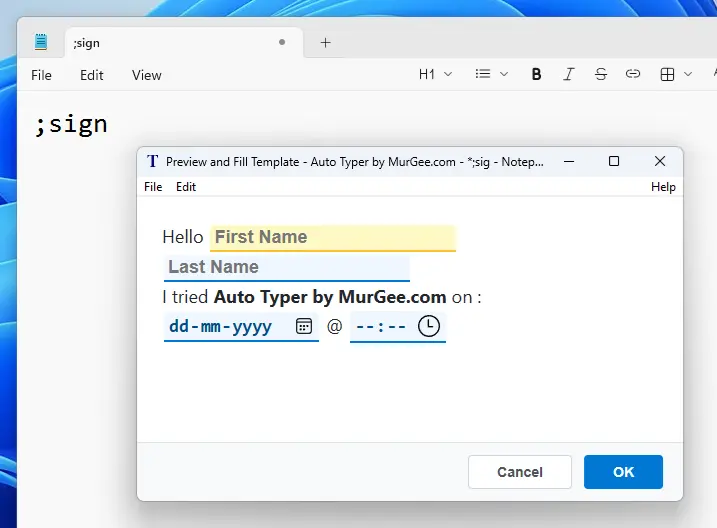
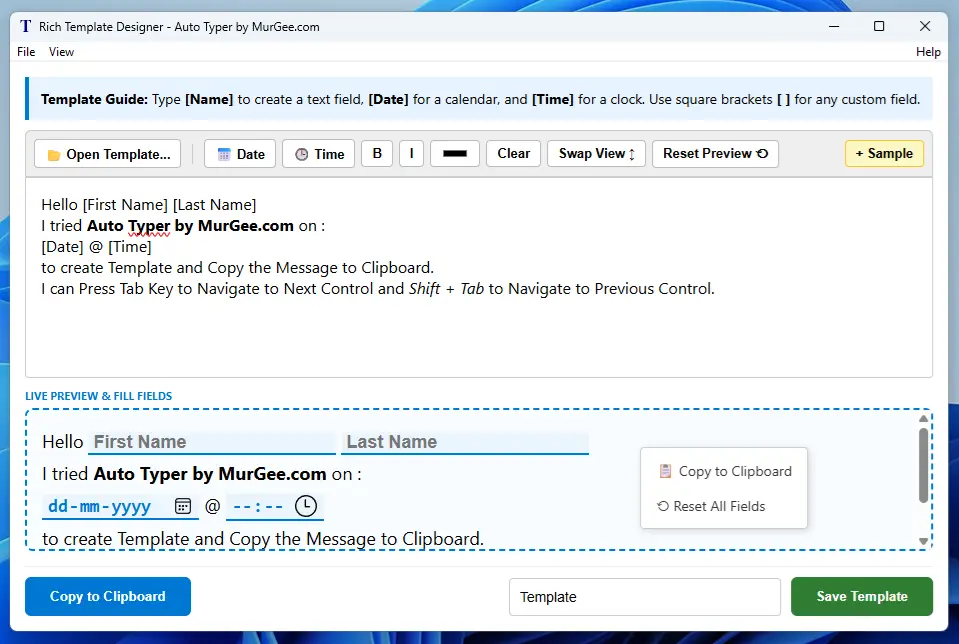
- Template Manager and Rich Template Designer allow creating text snippets with interactive text, date, and time fields. Snippets triggered in text fields open a fillable preview window to expand formatted text into the active window.
Shortcut Methods Available for Starting Automated Text Typing
Apart from keyboard shortcuts (such as F6, Ctrl + G, etc.) for typing text onto active application windows, this application supports text shortcuts and popup menus to automate typing. All shortcuts are seamlessly integrated into the easy-to-use Auto Typer by MurGee.com utility. The list below outlines shortcut methods offered by this utility to insert stored text phrases at the current cursor position.
- Text Shortcut: Manually type a custom keyword (e.g., email or thanks) to trigger automated typing. Auto Typer detects the keyword, sends Backspace commands to erase it, and types out the pre-configured text sentence automatically.
- Popup Menu: Configure a single master hotkey to display an on-screen popup menu containing all saved text records. This allows you to select and type phrases from a menu without remembering multiple hotkeys.
- Keyboard Shortcut: Assign unique keyboard hotkeys to individual text records for instant automated typing. Pressing the hotkey again during typing will abort execution.
Note that all automated typing shortcuts stop operating when you exit the Auto Typer application. This application uses standard Windows interface controls, right-click context menus, and clear buttons for intuitive navigation. Explore the screenshots provided on this website to see how this utility can save you time and effort. You can download and try this application on your Windows computer for free without functionality restrictions.
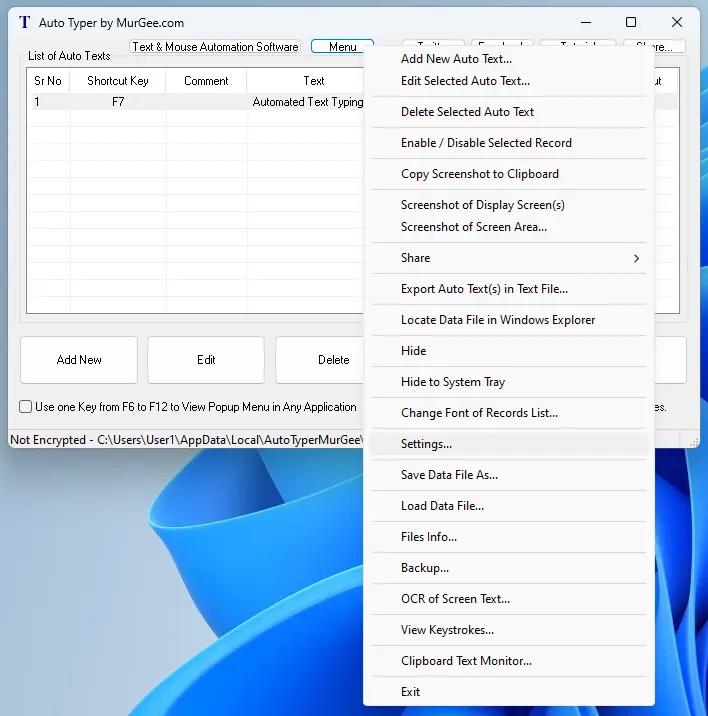
Right-click on the main screen of the software or click the Menu button to open a menu displaying various features offered by this Text Typing Software. The context menu provides quick access to all functions.
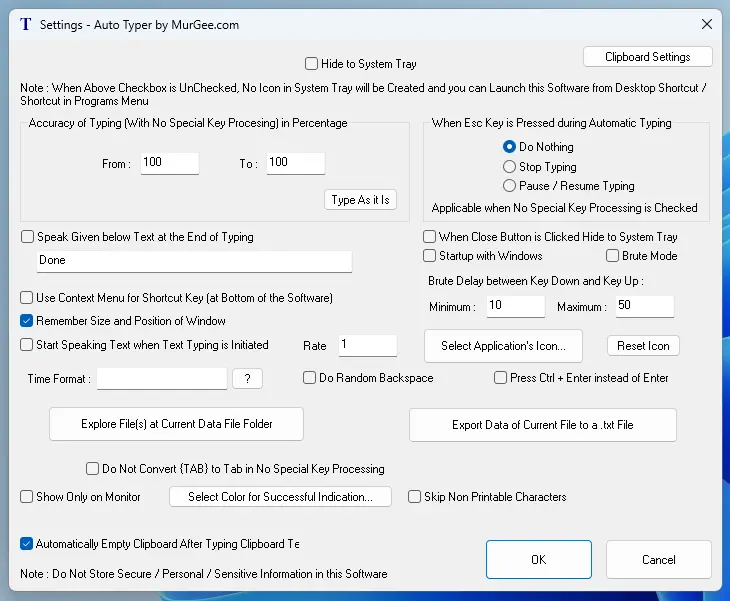
Settings allow configuring voice alerts, Esc key stop/pause actions, and automated behavior. Once settings are updated, close the Settings screen to save your preferences.
Control Speed of Automated Text Typing
Lower Time Delay Values Produce Faster Typing
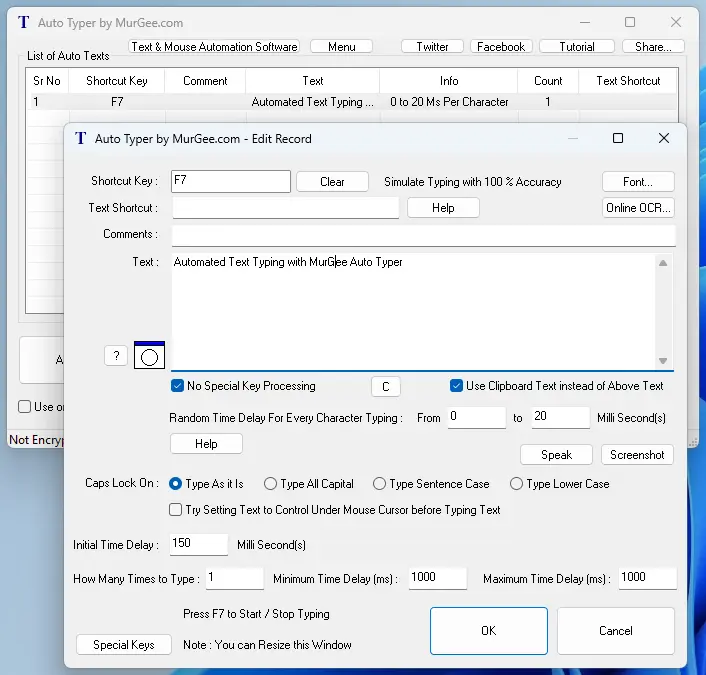
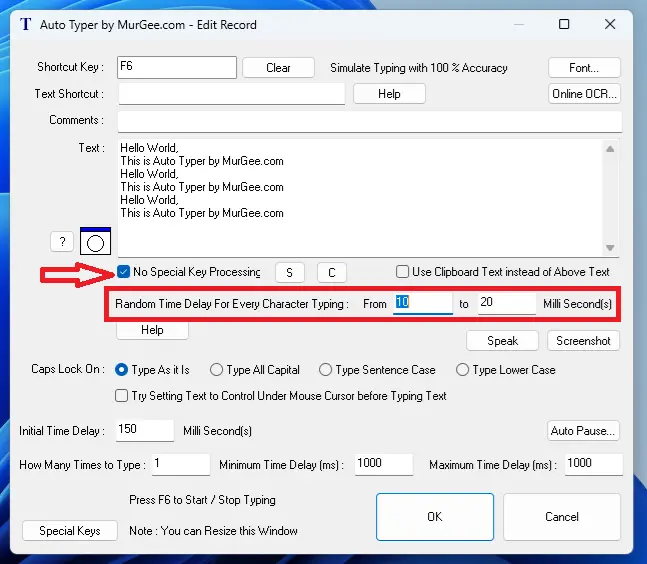
When using No Special Key Processing mode, you can control automated typing speed in Auto Typer. The screenshot below shows how to adjust per-character time delays. The default value is a random delay between 10 and 20 milliseconds. To increase typing speed, decrease the per-character delay values (e.g., 1 to 5 ms). To decrease speed, increase the delay values (e.g., 50 to 100 ms).
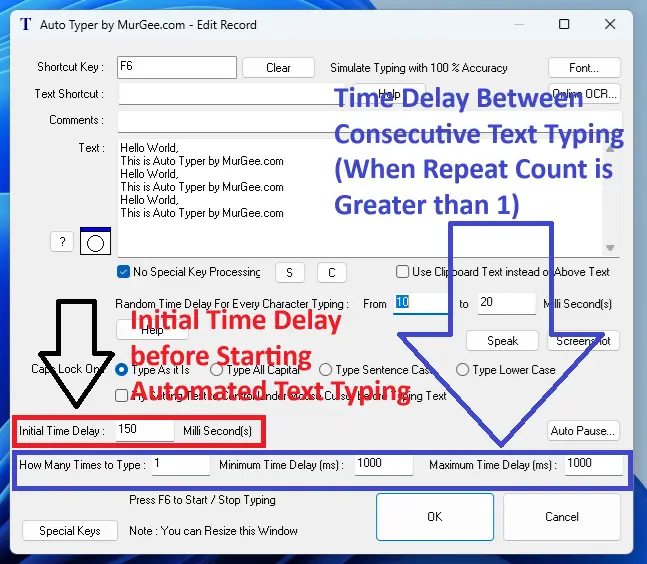
You can also configure initial execution delays and interval delays between loop repetitions when repeating text typing. As shown below, you can set an initial start delay (in milliseconds) as well as random delay intervals between repetitions.
Enable Brute Mode from Settings of Auto Typer
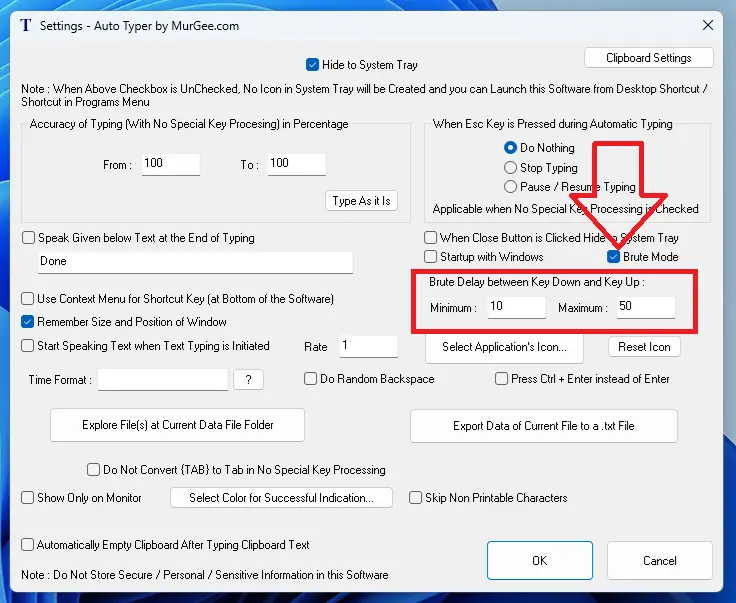
When you want automated text typing in No Special Key Processing mode to simulate physical Key Down and Key Up events for your active keyboard layout, enable Brute Mode in Settings. You can also specify random Key Down and Key Up hold durations in milliseconds (e.g., 10 to 50 ms).
Automatically Pause and Resume Text Typing
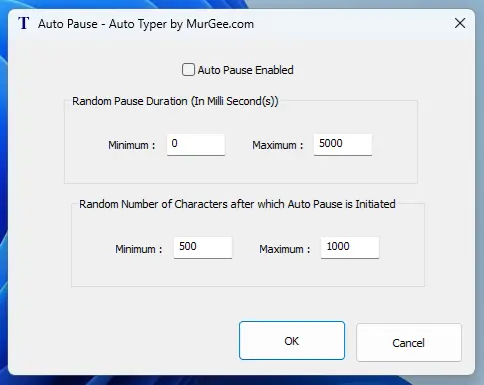
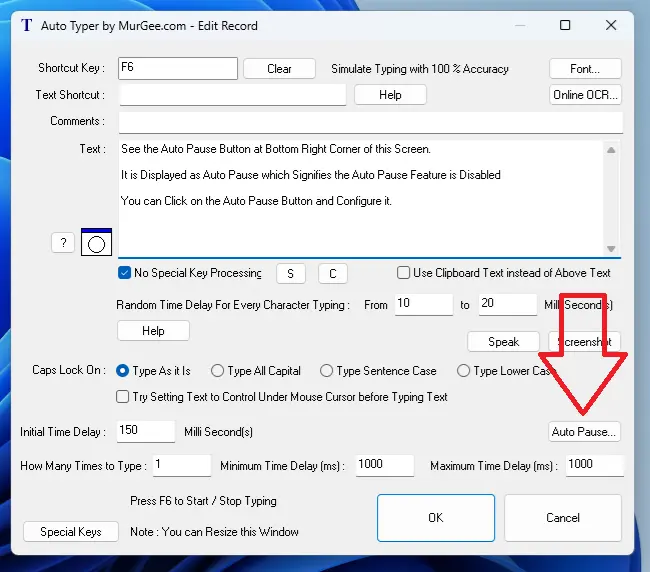
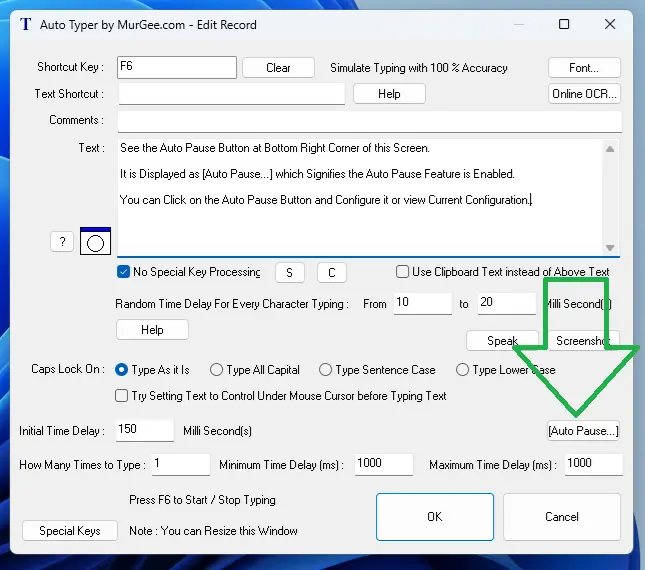
When you want typing to pause automatically after a random number of characters for a set duration, enable the Auto Pause feature. Auto Pause can be toggled by clicking the Auto Pause button on the Add / Edit Text Record screen.
Auto Pause Feature Disabled
The screenshot below shows the Edit Record screen with Auto Pause disabled (the default setting).
Auto Pause Feature Enabled
When enabled, the button title updates to [Auto Pause...] to indicate active Auto Pause rules for the record.
Rich Text Template Designer
The Rich Text Template Designer allows designing formatted text templates (with bold, italic, underline, etc.) containing interactive text, date, and time fields expanded upon snippet entry.
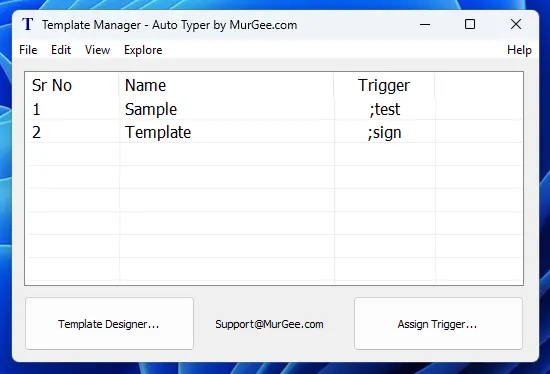
Template Manager
Template Manager lists saved templates and lets you assign text triggers to each snippet. Template files are stored locally on your Windows computer.
Snippet to Paste Text
Once configured, typing a snippet in any text field opens a preview window to fill in dynamic values and paste formatted text into your target application.